Development Environment Setup (Required)
To build, develop, and ship NWAVE consistently across multiple GPU platforms, we provide preconfigured Docker environments for developing PyTorch extensions with HIP, supporting both:
- AMD GPUs (ROCm)
- NVIDIA GPUs (CUDA)
- No GPU setups (cpu-only) (with limited features)
These environments ensure:
- Identical toolchains across platforms
- Consistent ROCm / CUDA / HIP versions
- Proper GPU access and permissions
- A reproducible setup for all developers
Warning
Using these environments is strongly recommended. Deviating from them will likely result in build issues, missing symbols, or platform-specific incompatibilities.
The Dockerfiles are derived from the official ROCm examples repository, and are available in the downloaded zip file for completeness.
What’s Included
Each environment comes fully set up with:
- Ubuntu base image
- HIP development tools and libraries
- Support for ROCm (AMD)/CUDA (NVIDIA)/CPU-only
- Anaconda Python distribution
- A ready-to-use Conda environment (
PyTorch) - CMake and standard development tools
- Correct GPU device access, IPC, and shared memory configuration
Prerequisites
Before building or running the containers, make sure you have:
- Docker installed
- Linux based OS (or WSL if using windows)
-
If you have GPU:
-
AMD users:
- ROCm-compatible GPU
- ROCm drivers installed on the host
-
NVIDIA users:
- CUDA-compatible GPU
- NVIDIA drivers installed on the host
-
-
The extracted NWAVE package containing:
assets/downloads/nwave-100a/install.sh- wheel files and Dockerfile templates in the same folder
Mac-OS is not tested due to limited hardware supports, feel free to test the CPU-only environments on mac machines!
Automated Installation
Before starting the installation, you should create a folder named DockerMem in a filesystem position that is easily accessible (for instance in /home/<user>). This is the folder in which all files/projects must be be placed in order to be used in the container (and therefore by NWAVE too).
All environment setup steps are automated through install.sh.
From the package folder:
cd nwave-100a
chmod +x install.sh
After that, in both the GPU vendor case, an image name and a container name must be chosen to launch the installer (any name is ok, as long as it doesn't contains - or /).
AMD (ROCm)
./install.sh \
  --vendor amd \
  --dockermem-dir /absolute/path/to/DockerMem \
  --image-name kernel_devel_amd_630 \
  --container-name nwave_amd_dev \
  --amd-gfx 11.0.0
Use --amd-gfx 10.3.0 for RDNA/RDNA2 when needed.
NVIDIA (CUDA)
./install.sh \
  --vendor nvidia \
  --dockermem-dir /absolute/path/to/DockerMem \
  --image-name kernel_devel_nvidia_630 \
  --container-name nwave_nvidia_dev
CPU-only
./install.sh \
  --vendor cpu \
  --dockermem-dir /absolute/path/to/DockerMem \
  --image-name kernel_devel_cpu_630 \
  --container-name nwave_cpu_dev
Using the Environment
NWAVE runs inside a Docker container.
A container is like a ready-to-use environment with everything already installed (Python, PyTorch, etc.).
Using the Environment (Terminal)
Start or enter the container
If it’s already running:
docker attach {your_container_name}
If it’s not running:
docker start -ai {your_container_name}
If you used the install script, the name is usually:
nwave_{vendor}_dev
Activate the environment
Once inside, run:
source activate PyTorch
⚠️ You must run this every time you enter the container.
Using the Environment in VSCode
Click the bottom-left corner in VSCode:
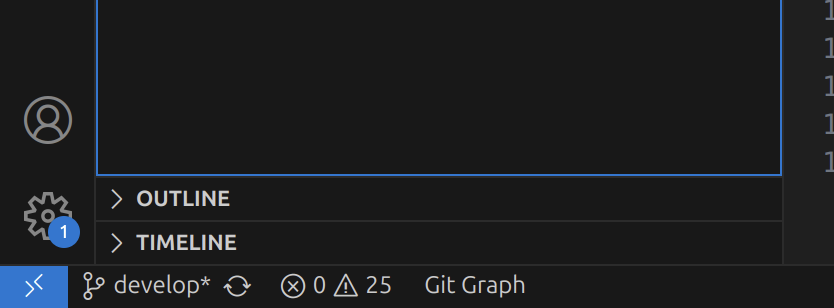
Then select:
"Attach to Running Container..."
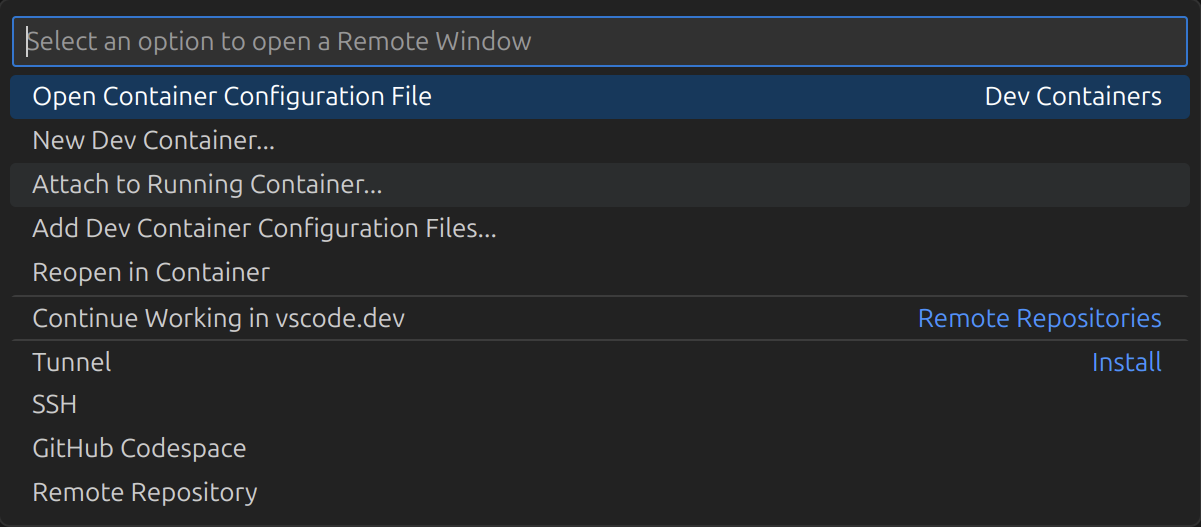
Choose your container from the list.
If no container appears
Start it first from the terminal:
docker start -ai {your_container_name}
Notes
- Select the PyTorch environment in VSCode
- Files are available under
/home/workspacesthat mirrors the host folder/home/{your-pc-name}/DockerMem - Install the Jupyter extension if you want to run notebooks
Troubleshooting
GPU Not Detected
- AMD: Verify ROCm installation and presence of
/dev/kfdand/dev/dri - NVIDIA: Verify NVIDIA Container Toolkit and driver installation
Permission Issues
- Ensure your user is in the
dockergroup - Confirm UID/GID match between host and container
- Check permissions on the shared workspace directory
SSL Certificate Errors on Org Networks
If you are building the Docker image on a corporate or organisational network with custom SSL certificates, conda may fail with SSL verification errors during the environment setup step.
To work around this, open the relevant Dockerfile before building and uncomment the following line (located just above the conda create command):
RUN conda config --set ssl_verify false
Warning
Only do this if you trust your network. Disabling SSL verification removes certificate validation for all conda and pip operations inside the container.
Contributing
For issues, feature requests, or questions, either raise a github issue on the release repo or send a mail at giuseppe@neuronovatech.com.